Unlock a password-protected document in MS WORD
Why would you want to unlock a password-protected Word document? Surely the author/company has locked it for a reason? Yes, in many cases, that’s correct and you shouldn’t try to circumvent the password protection — instead, ask the author/company for the password if you need to access elements of the document.
However, if the author has left the company, or if they wrote the document many years ago and have forgotten the password, then you may need to break the password protection to access the document’s contents and functions.
You can follow the steps in the link above, or, in case the content at that link gets removed at any stage, follow my modified and more detailed steps below, which are based on that article:
- Open the password-protected document in Word.
- Go to File > Save As, then select Word XML Document (*.xml) from the Save as type drop-down list.
- Click Save. Close the application.
- Right-click on the saved XML file (it should be in the same folder as your original document), then select Open with and choose a text editing program to open the file with (e.g. WordPad, NotePad, or other text editing program — do NOT choose Microsoft Word).
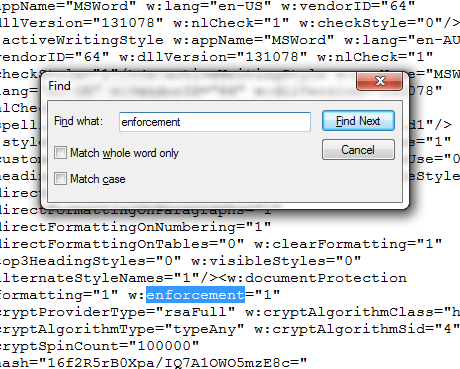
- Press Ctrl+F to open the Find dialog box, in the Find what field, type enforcement.
- Now find this w:enforcement=”1″ or w:enforcement=”on”.
- Replace the “1” with a zero “0” (or replace “on” with “off”) to disable enforcement. This step unlocks the document.
- Save the XML document within your text editor, then close the text editing software.
- Right-click on the saved XML file, then select Open with and choose Microsoft Word.
- As soon as you’ve opened it, go to File > Save As, then select Word Document (*.docx) from the Save as type drop-down list. Change the file name if you want to preserve the original password-protected document an make this a new document, or use the same file name to replace the original document.
- Click Save now you can edit the document.

 ADDITIONAL KNOWLEDGE
Leave a comment